Sync Any Bank to Redbark with Document Extraction
Redbark's new Documents feature turns PDF statements and receipts into transactions, so you can sync banks and accounts that aren't supported as a live connection.

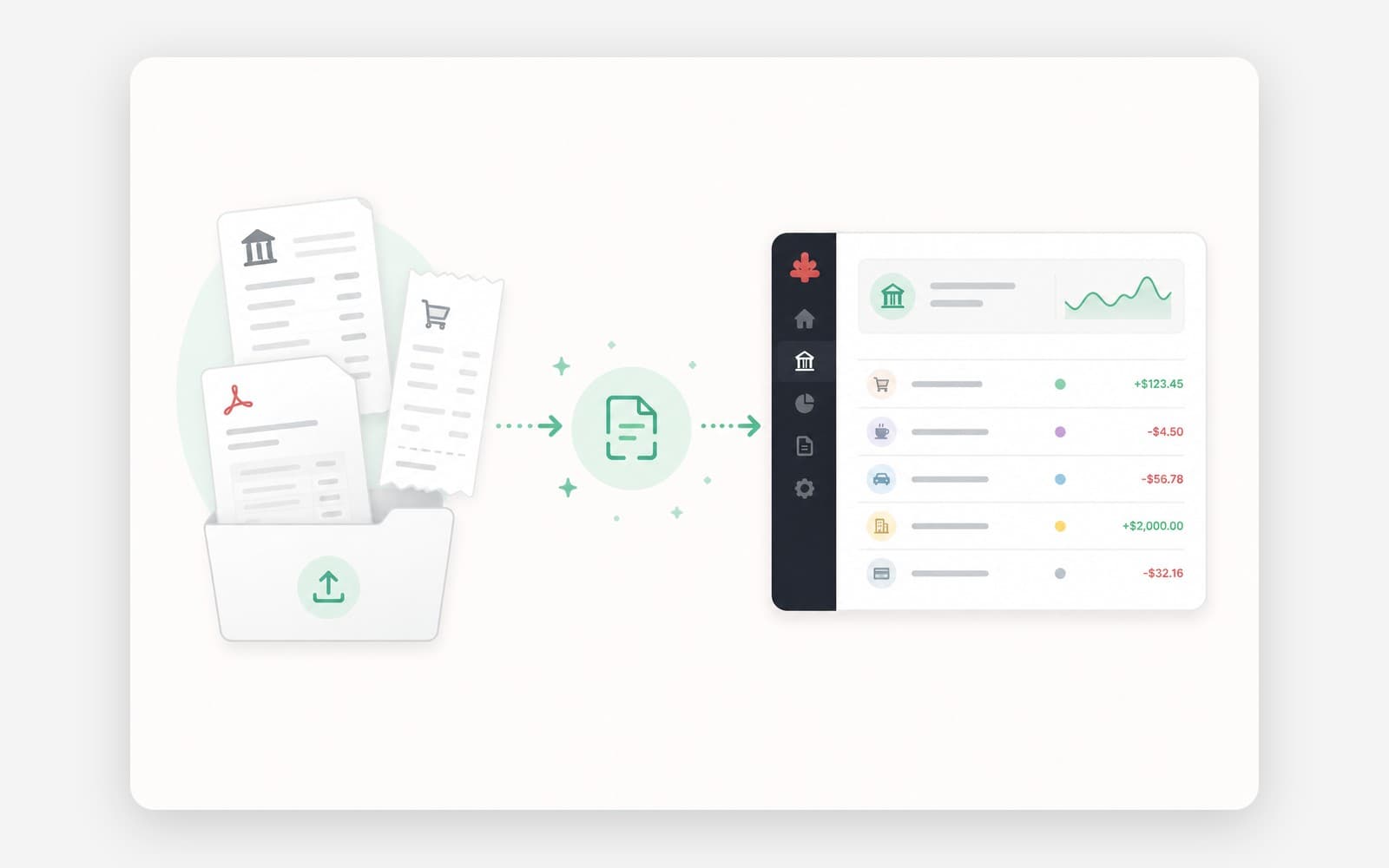
Redbark connects to Australian banks through CDR Open Banking, which covers most banks, credit unions, and building societies. But it doesn't cover everything. American Express isn't in the CDR yet. Plenty of overseas banks, niche lenders, and older accounts have no live feed we can connect to.
Until now, if your bank wasn't supported, you were stuck. Today we're launching Documents: upload a PDF statement (or forward it by email) and Redbark extracts the transactions for you. Once extracted, that data behaves like any other connection. You can add it to a sync, push it to Google Sheets, Airtable, Notion, YNAB, or a webhook, and query it through the API and MCP server in exactly the same shape as a bank connection.
In other words, you can now get just about any account into Redbark, supported or not.
How this is different from a bank connection
This is the important part, so I want to be upfront about it.
Bank and brokerage connections are pass-through. Transactions are proxied live from the provider at sync time and written straight to your destination. Nothing touches our database. That's the model we built Redbark on, and it's covered in detail in our security post.
Documents can't work that way. There's no live feed to proxy, so to get your transactions we have to read the file you give us. That means Documents stores two things a normal connection never does: the file itself, which we keep in encrypted object storage as the provenance for the rows we pulled out of it, and the extracted transactions, which we keep in our database so they can be queried and synced.
If that trade-off doesn't suit you, use a live connection wherever one is available. Documents is for the cases where one isn't. Deleting a file removes its stored bytes and its extracted rows. Deleting a bucket removes everything in it. The full breakdown is in the Documents docs.
Buckets
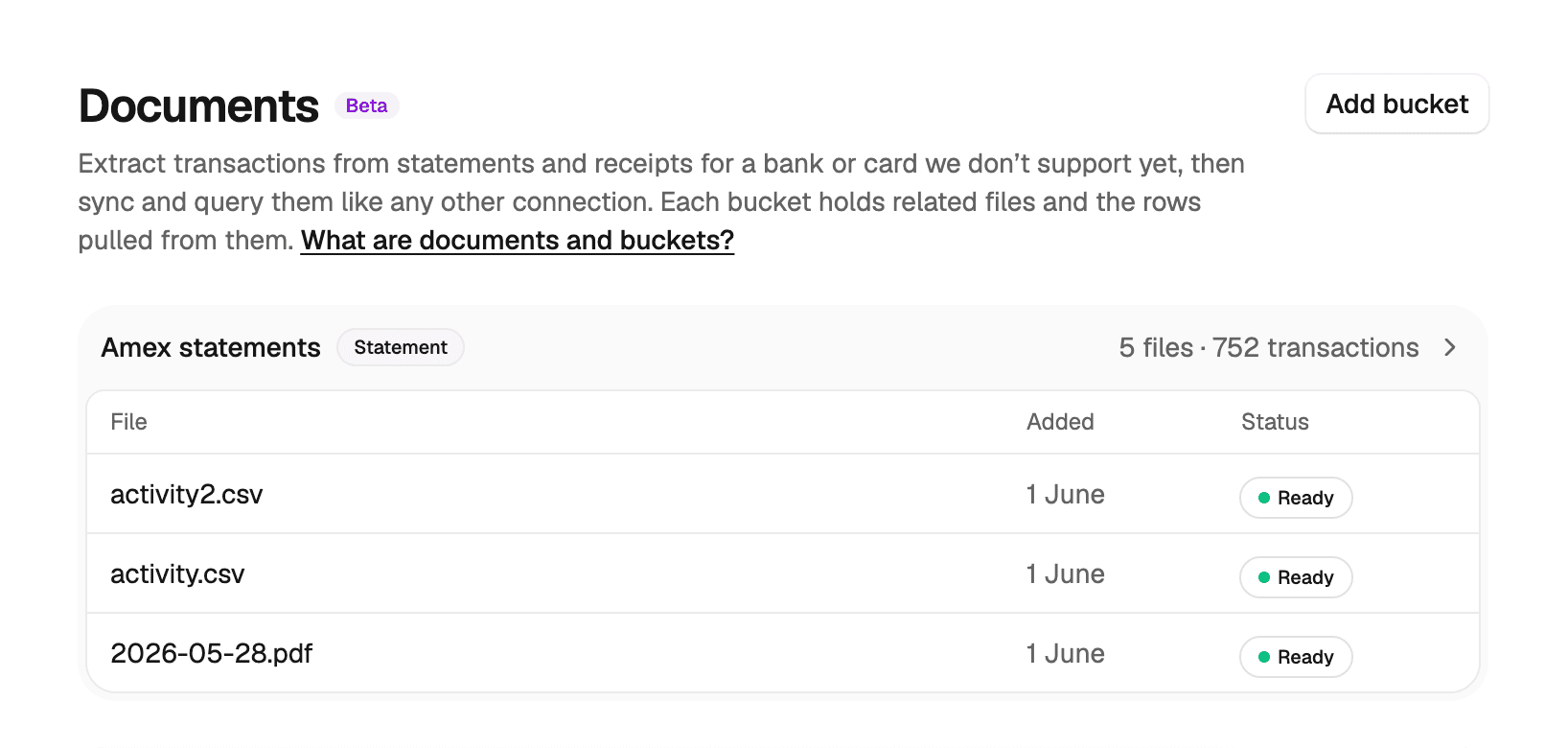
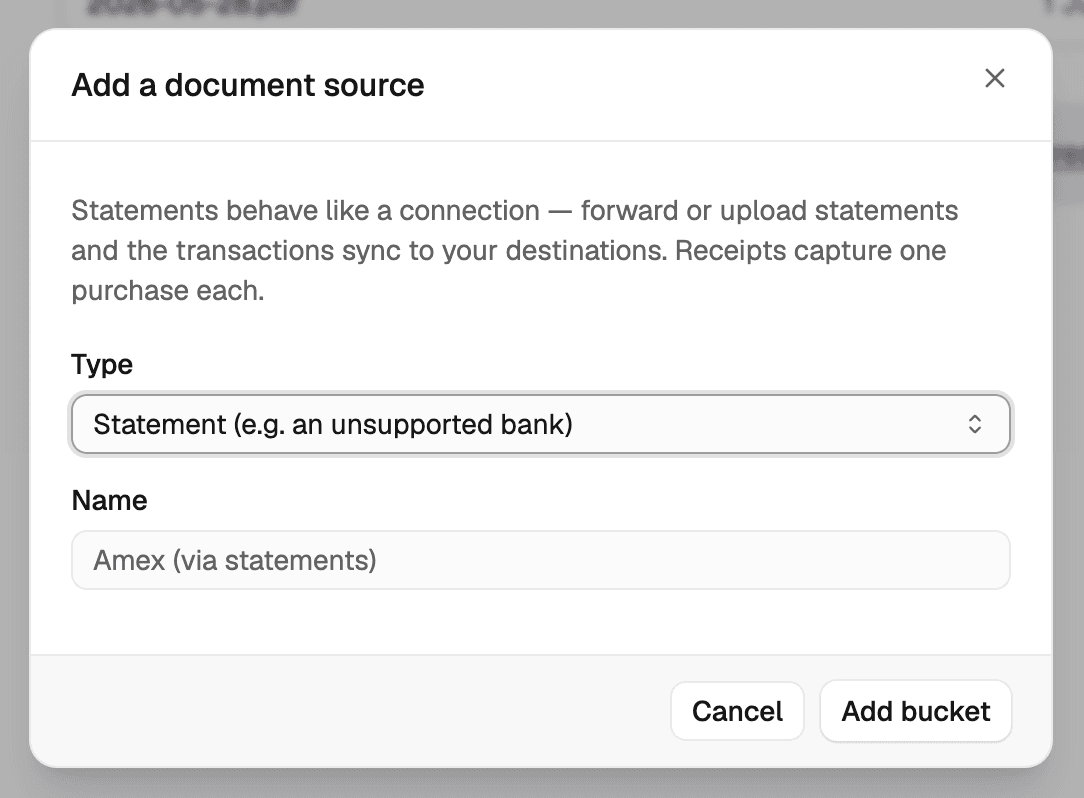
A bucket collects related files and the transactions extracted from them. There are two types. A statement bucket is for an account at a bank we don't support: add statement PDFs and the line items become transactions automatically. A receipts bucket is for tracking individual purchases: add a receipt and it's captured as a transaction.
Behind the scenes, a bucket is modelled as a connection with a single account, which is why it shows up alongside your bank connections and can be added to a sync.
Adding documents
There are two ways to get files into a bucket.
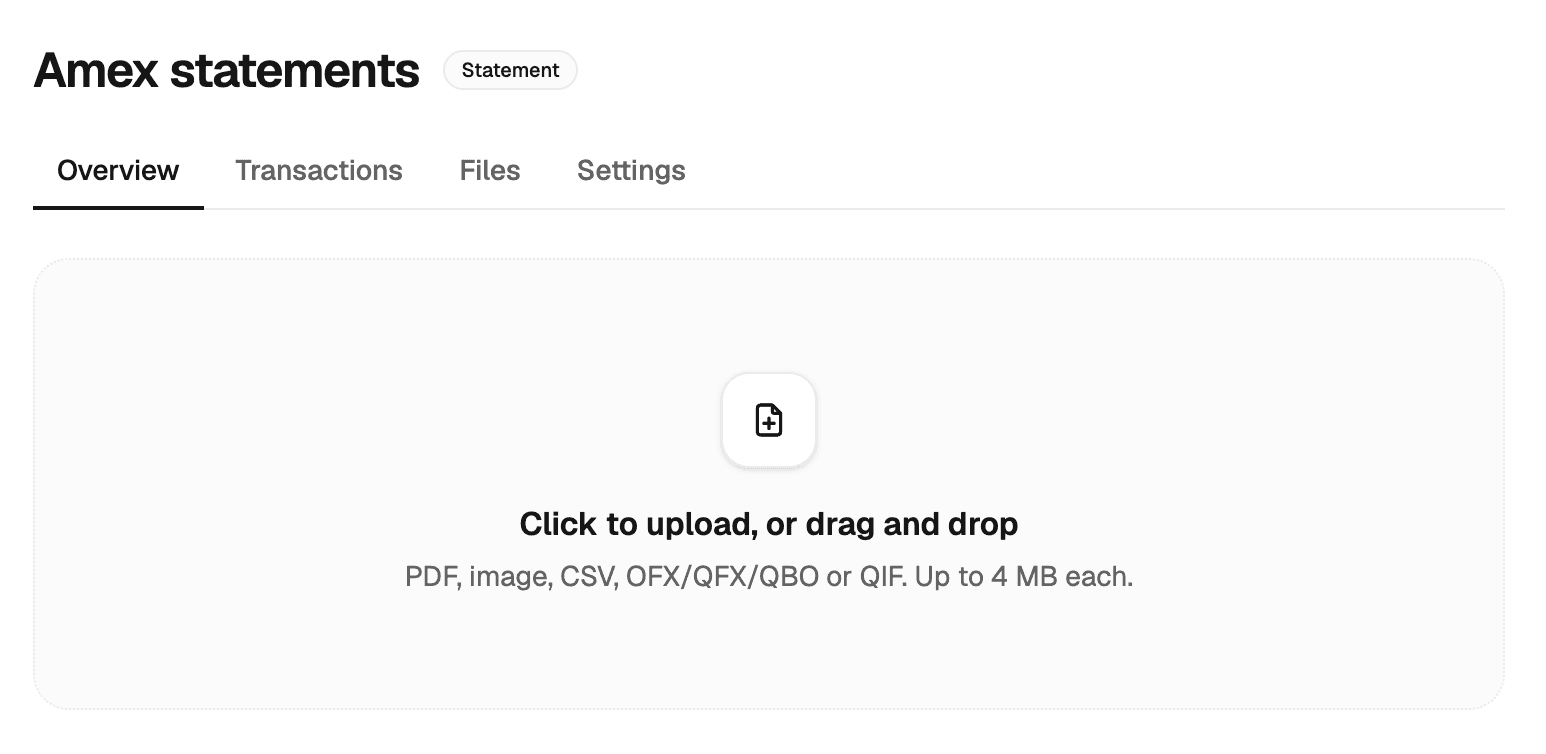
Upload
Drag and drop files onto the upload area, or click to choose them. Supported types are PDF, images (PNG and JPEG), and structured exports (CSV, OFX/QFX/QBO, and QIF), up to 4 MB each. PDFs can run to 30 pages; split a longer statement into parts if you hit that limit.
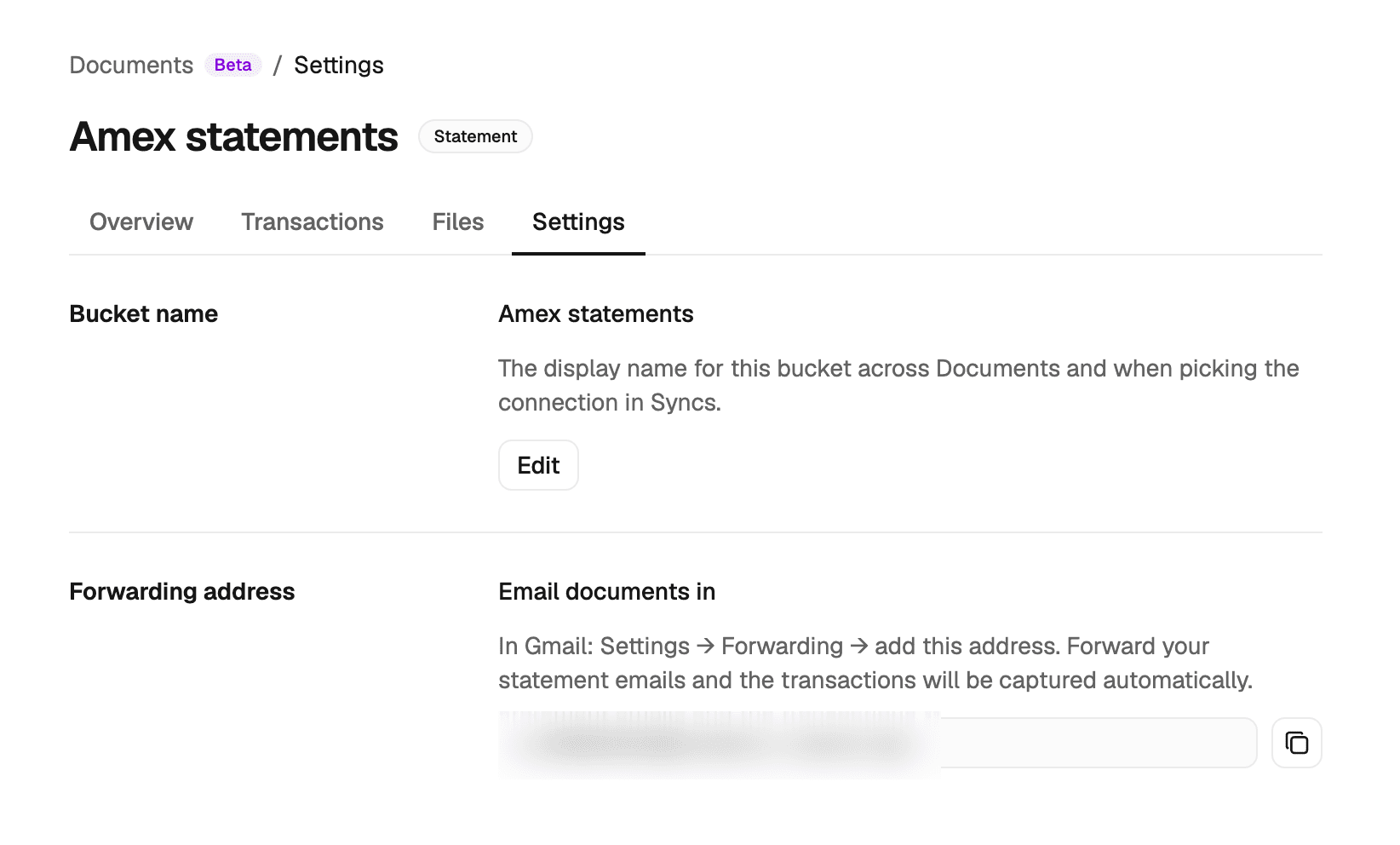
Each bucket has its own forwarding address, shown on its Settings tab (something like u_ab12cd34@documents.redbark.co). Forward an email to that address and Redbark extracts the document from it. This is handy for statements and receipts that already arrive in your inbox. In Gmail you can set up a filter that auto-forwards them, so new statements get extracted without you lifting a finger.
One thing to know: the document must be an attachment. Redbark only reads file attachments, not text in the body of the email. A receipt pasted into the email body, or an HTML email receipt with no attachment, won't produce any transactions. Nothing is dropped silently though. A forwarded email with no readable attachment still appears in the bucket marked "received but unreadable" so you can see it arrived.
What happens after extraction
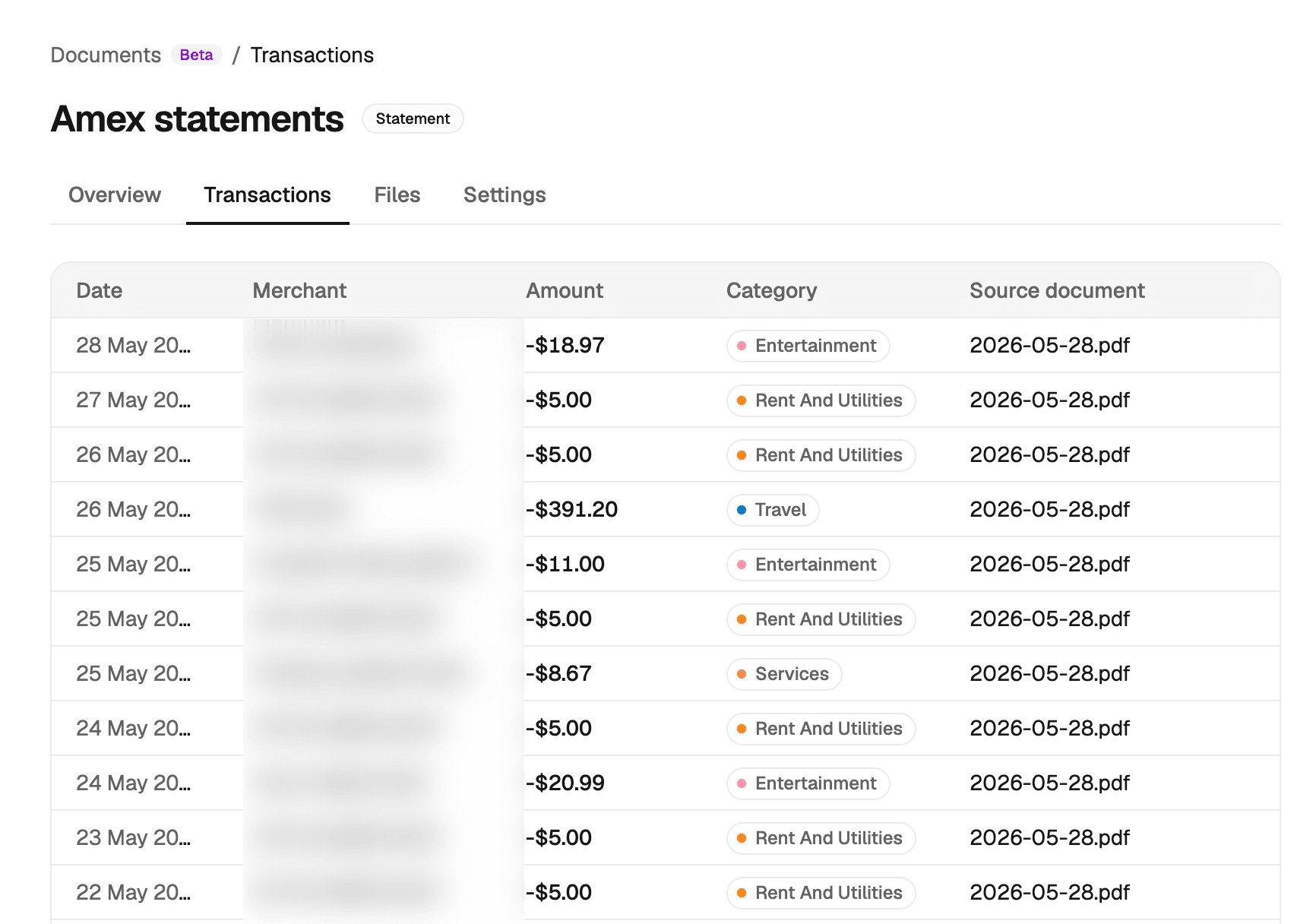
Extraction runs in the background and the file moves through a live status as it goes. Once it reaches Ready, the extracted transactions are added to the bucket and sync to your destinations automatically, in the same format as bank transactions. There's no manual review step.
Redbark validates every row as it reads it, checking the amount, date, and currency, and reconciling a statement against its stated total where it can. Rows that look off are flagged as low-confidence and synced anyway, with a marker so you can spot them. If an extraction is clearly wrong, delete the file to remove its rows and upload a cleaner copy.
Syncing a bucket anywhere
This is where it ties back to the rest of Redbark. Add a bucket to a sync the same way you'd add a bank connection, then pick a destination. Its transactions get written there in the same shape as bank transactions. Upload several months of statements and adding the bucket to a sync backfills that whole history at once.
A bucket also appears in the API under GET /connections and GET /accounts, and its transactions come back from GET /transactions. Your AI tools see it through the MCP server the same way. No special handling on the consumer side. A bucket is just another connection.
Limits and pricing
Reading a document uses an AI model, so extraction is metered. Every plan includes a monthly allowance:
| Trial | Saver | Developer | Professional |
|---|---|---|---|
| 5 / month | 30 / month | 150 / month | 500 / month |
You're only charged for successful extractions. A document counts toward your allowance once it reaches Ready, so failed extractions and forwarded emails with no readable attachment never use a slot. The allowance resets on the 1st of each month (UTC). If you hit it, uploads and forwarded emails are still recorded but not extracted until the allowance resets or you upgrade, and your existing transactions and syncs keep running either way.
Getting started
Documents is rolling out now. Sign in at app.redbark.co, create a bucket, and add your first statement. If you're already syncing a supported bank, this is the piece that fills in everything else: the overseas account, the Amex card, the lender that isn't in the CDR yet.
Questions or a statement that won't extract cleanly? Reach out at support@redbark.co and send the file along.