How to Sync Australian Banks with You Need a Budget
A step-by-step guide to connecting your Australian bank accounts to You Need a Budget with Redbark for automatic transaction imports.

Why You Need a Budget
You Need a Budget is the budgeting app most people land on once they get serious about it. It works on a simple idea: give every dollar a job. But if you're in Australia, you've hit the same wall everyone else has. You Need a Budget doesn't support direct bank imports for Australian institutions.
That means you're stuck manually importing transactions. Download a CSV or OFX from your bank, upload it to You Need a Budget, clean up any duplicates, repeat every few days. It works, but it's tedious enough that most people stop doing it after a couple of weeks and end up budgeting blind.
Redbark automates the import. You connect your Australian bank account, connect You Need a Budget, and transactions show up there without you doing anything.
What you need before starting
- An Australian bank account with one of the 100+ supported institutions (ANZ, CommBank, NAB, Westpac, and most smaller banks and credit unions)
- A You Need a Budget account with at least one plan and one account set up
- A Redbark account (7-day free trial, no credit card required)
If you don't have accounts set up in You Need a Budget yet, create them first. You'll need at least one account in your plan for each bank account you want to sync. For example, a "Checking" account for your transaction account and a "Credit Card" account for your Visa.
Connecting your bank
When you sign up and hit the dashboard, the first thing you'll do is add a connection. Click "Add Connection" and choose Australian Banks.
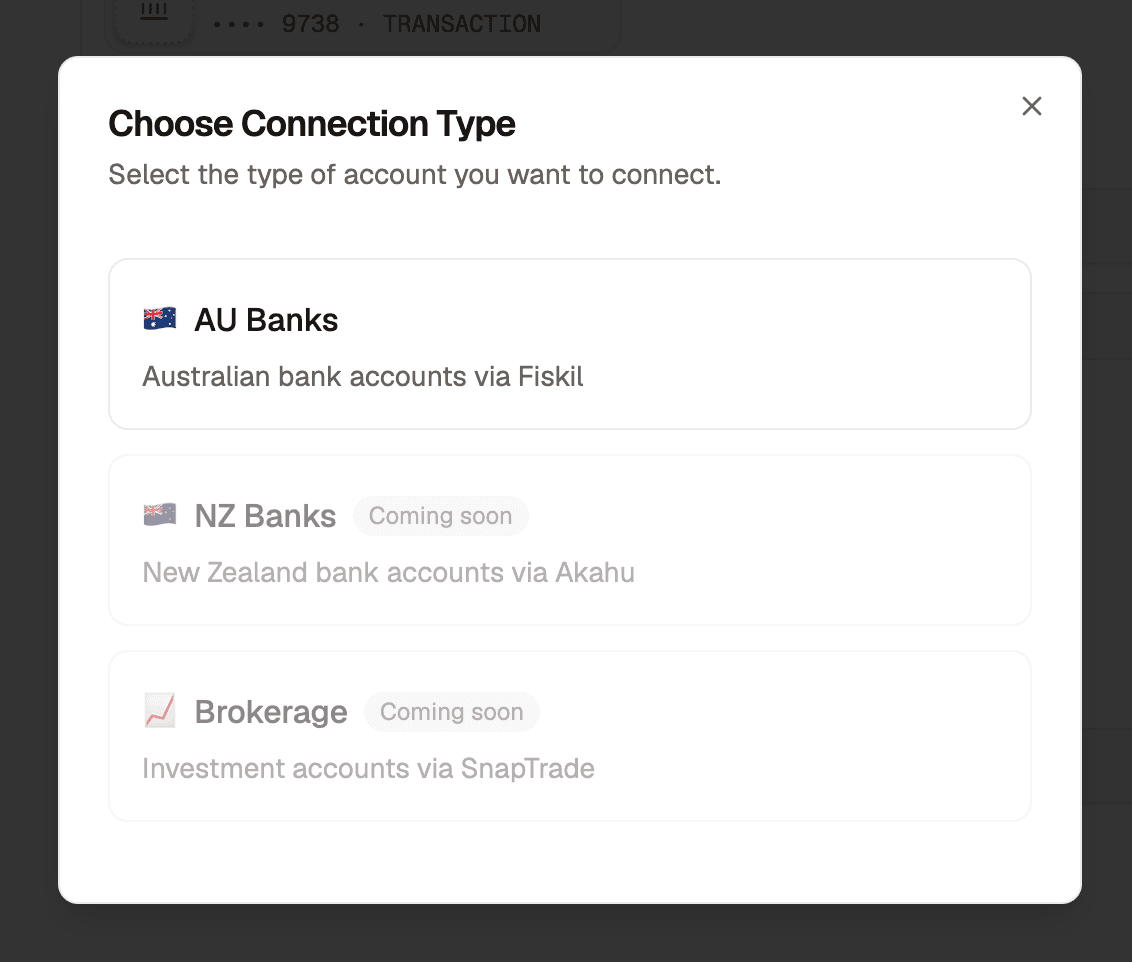
This takes you to Fiskil's consent screen, where you select your bank, log in with your banking credentials, and grant consent for Redbark to access your account and transaction data.
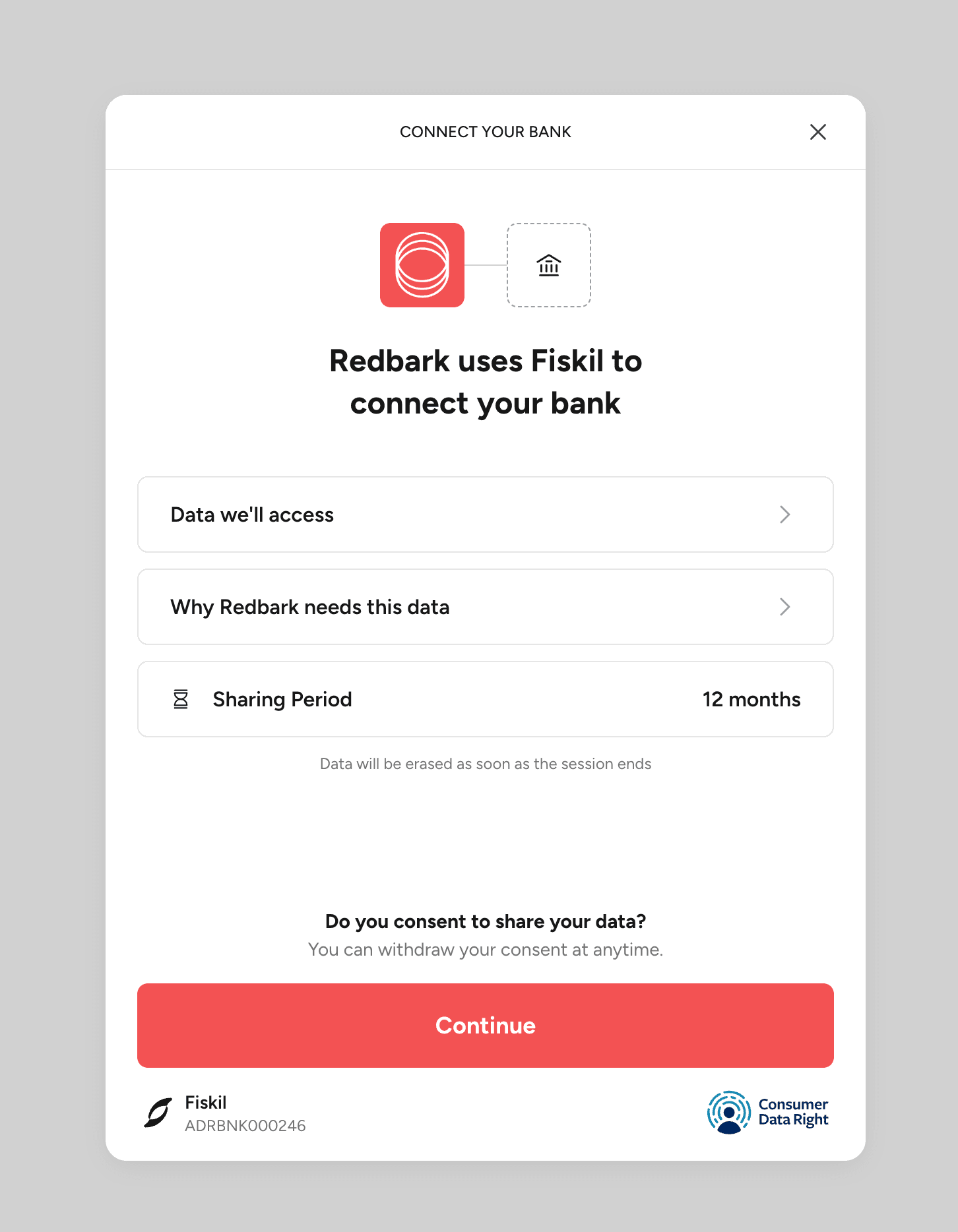
Fiskil is accredited under the Consumer Data Right (CDR). That accreditation means they've passed the ACCC's assessment for handling banking data, and your bank is legally required to share your data with them when you consent.
The whole thing takes about a minute. Once you're redirected back to Redbark, your accounts will appear in the dashboard. They'll show as syncing for a few seconds while Fiskil loads your transaction history, then switch to available.
CDR consent lasts up to 12 months. Redbark sends you an email about 90 days before expiry so you can re-consent if you want to keep syncing.
Connecting You Need a Budget
Next, you add You Need a Budget as a destination. Head to the Destinations page and click "Add Destination", then choose You Need a Budget.
This starts a standard OAuth flow. You'll be redirected to You Need a Budget's website where you log in and authorise Redbark to access your plans and create transactions.
Once you approve, you're redirected back to Redbark to finish setting up the destination. You'll pick which You Need a Budget plan to use. If you have multiple plans (say, a personal one and a shared household one), you pick the one you want transactions flowing into. Account selection happens later when you create a sync.
That's it for destination setup. You can always create additional You Need a Budget destinations later if you want to sync to multiple plans.
Creating a sync
With your bank and You Need a Budget connected, you create a sync. Click "Add Sync" from the syncs page and a wizard walks you through it.
Step 1: Pick your destination
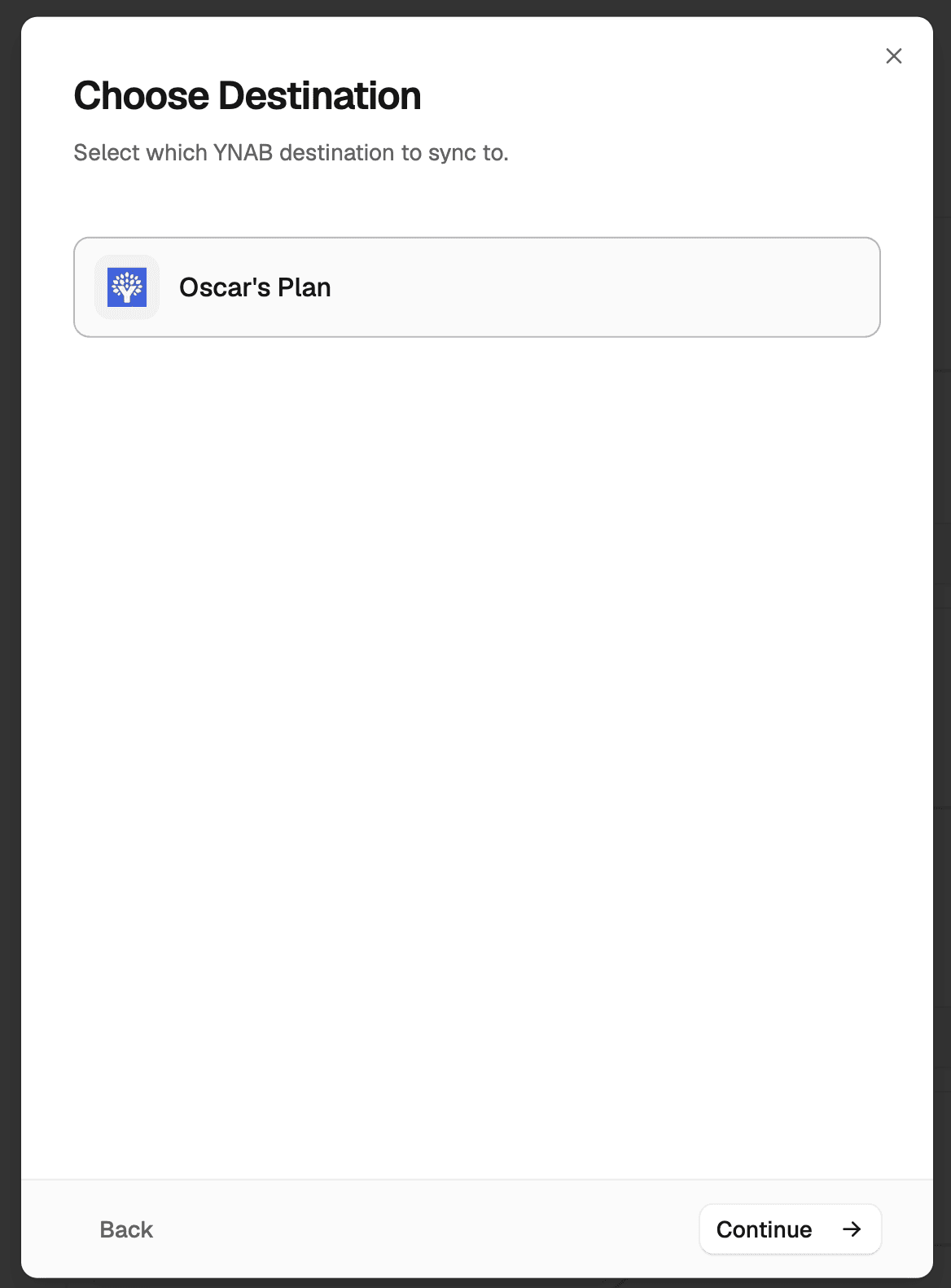
Select You Need a Budget as the destination type, then choose which You Need a Budget destination you set up earlier. If you only have one, it's already selected.
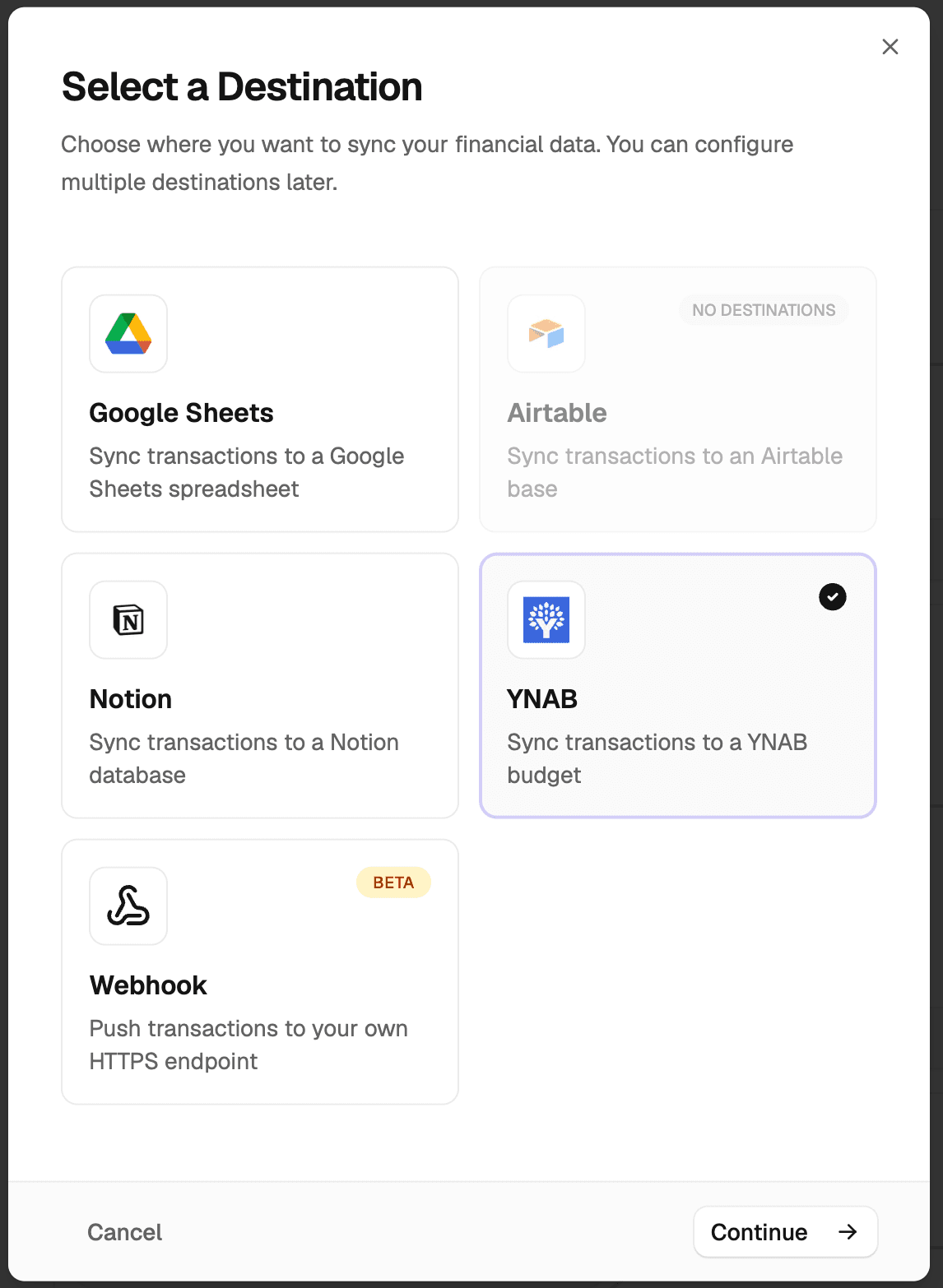
Then pick the specific You Need a Budget plan you want to sync to.
Step 2: Pick your bank accounts
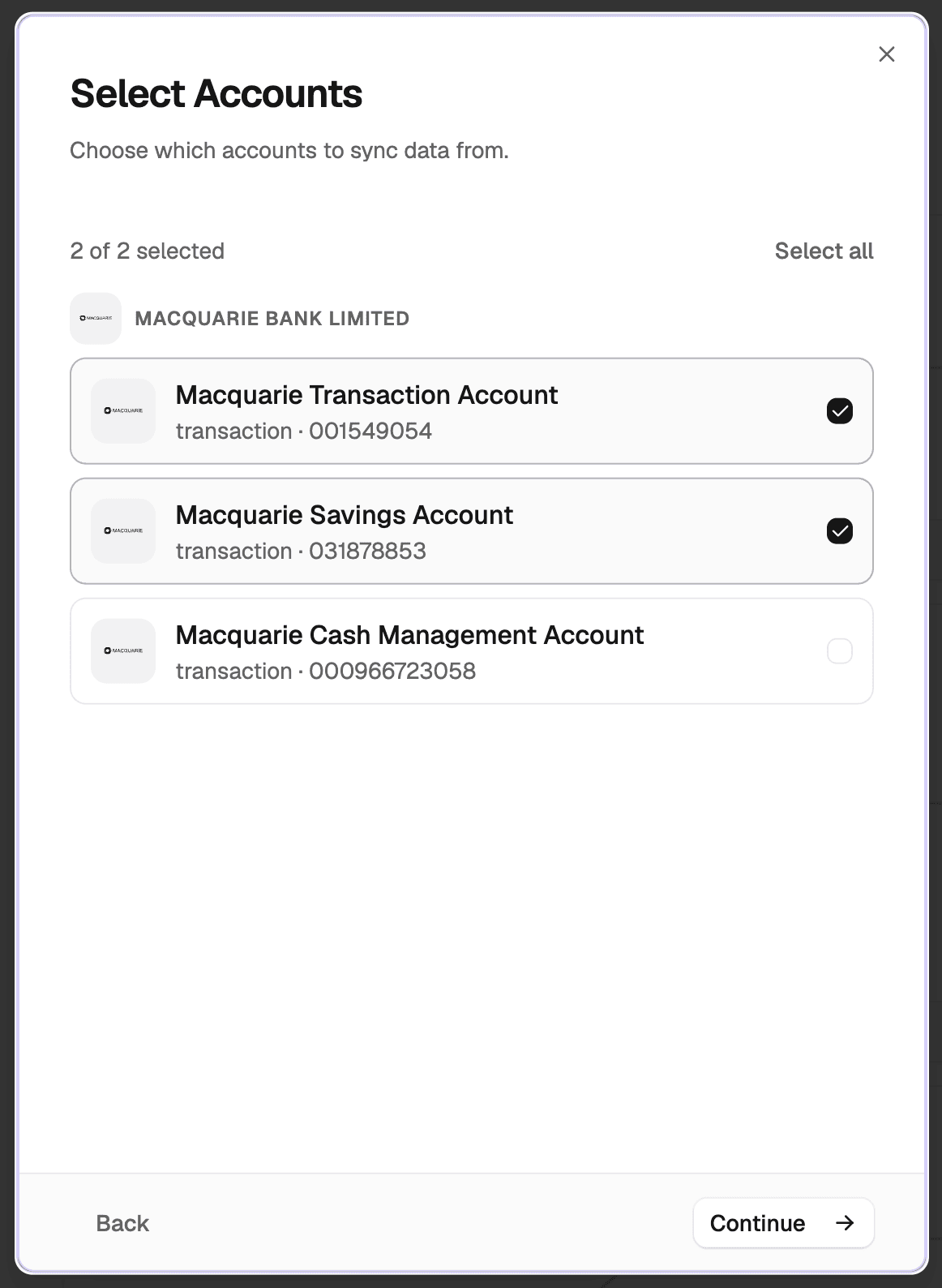
Choose which bank accounts to include. They're grouped by institution, so if you have accounts at both CommBank and ING, you'll see them in separate sections. You can select as many as you want.
Step 3: Map bank accounts to You Need a Budget accounts
This is where You Need a Budget differs from destinations like Google Sheets. Instead of everything going to one place, you map each bank account to a specific You Need a Budget account.
For example:
- Your CommBank transaction account → "Everyday Checking" in You Need a Budget
- Your CommBank credit card → "Visa Credit Card" in You Need a Budget
- Your ING savings → "Savings" in You Need a Budget
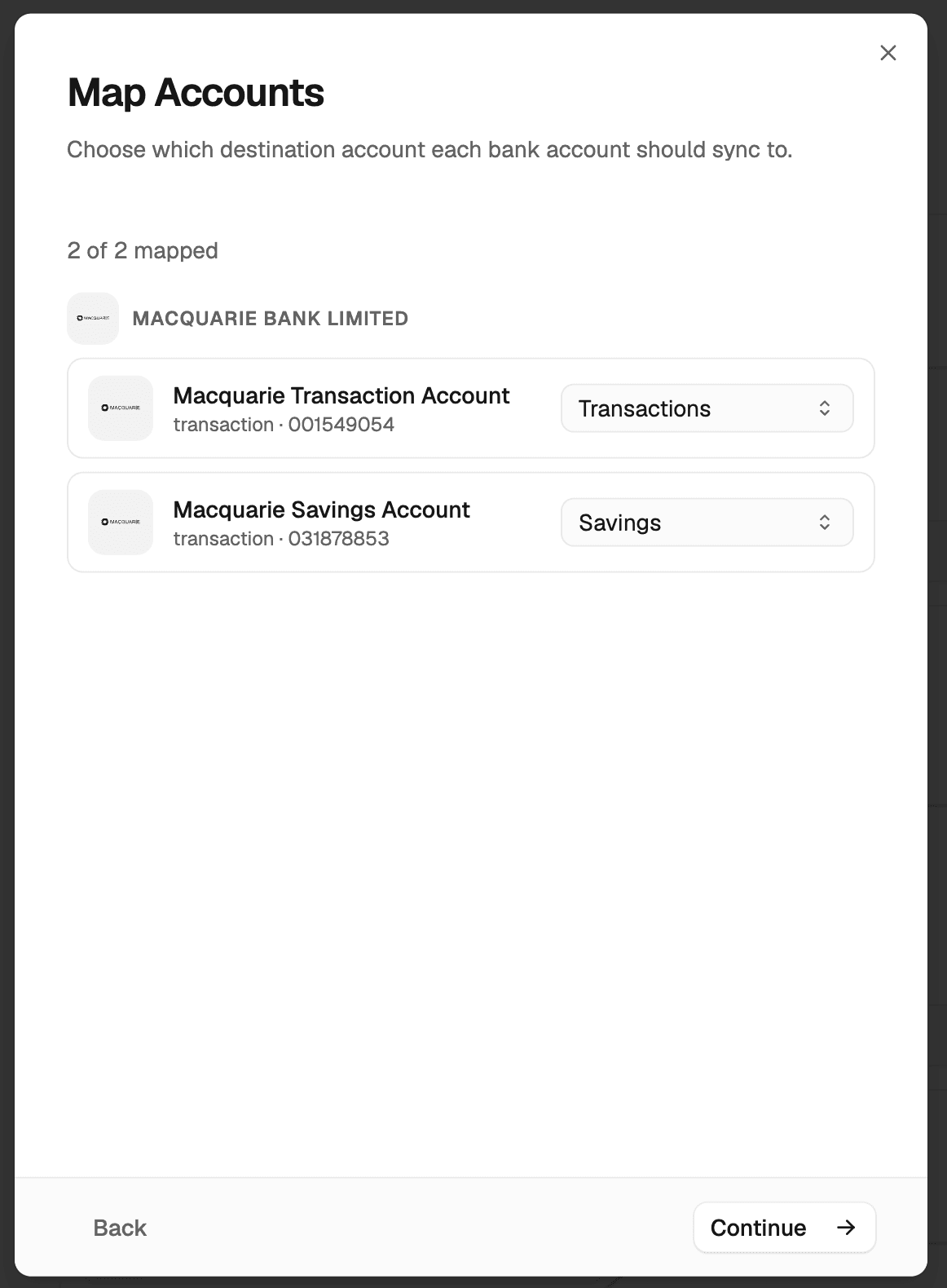
The dropdown shows all open, on-budget accounts in your selected You Need a Budget plan. If you don't see the account you need, create it in You Need a Budget first and come back.
You can map multiple bank accounts to the same You Need a Budget account if you want. Redbark will warn you that transactions will be merged, but it's a valid setup.
Step 4: Map categories (optional)
This step lets you map bank transaction categories to You Need a Budget categories. Your bank categorises transactions into things like "Groceries", "Utilities", "Transport", and so on. If you want those to automatically land in the matching You Need a Budget category, set up the mappings here.
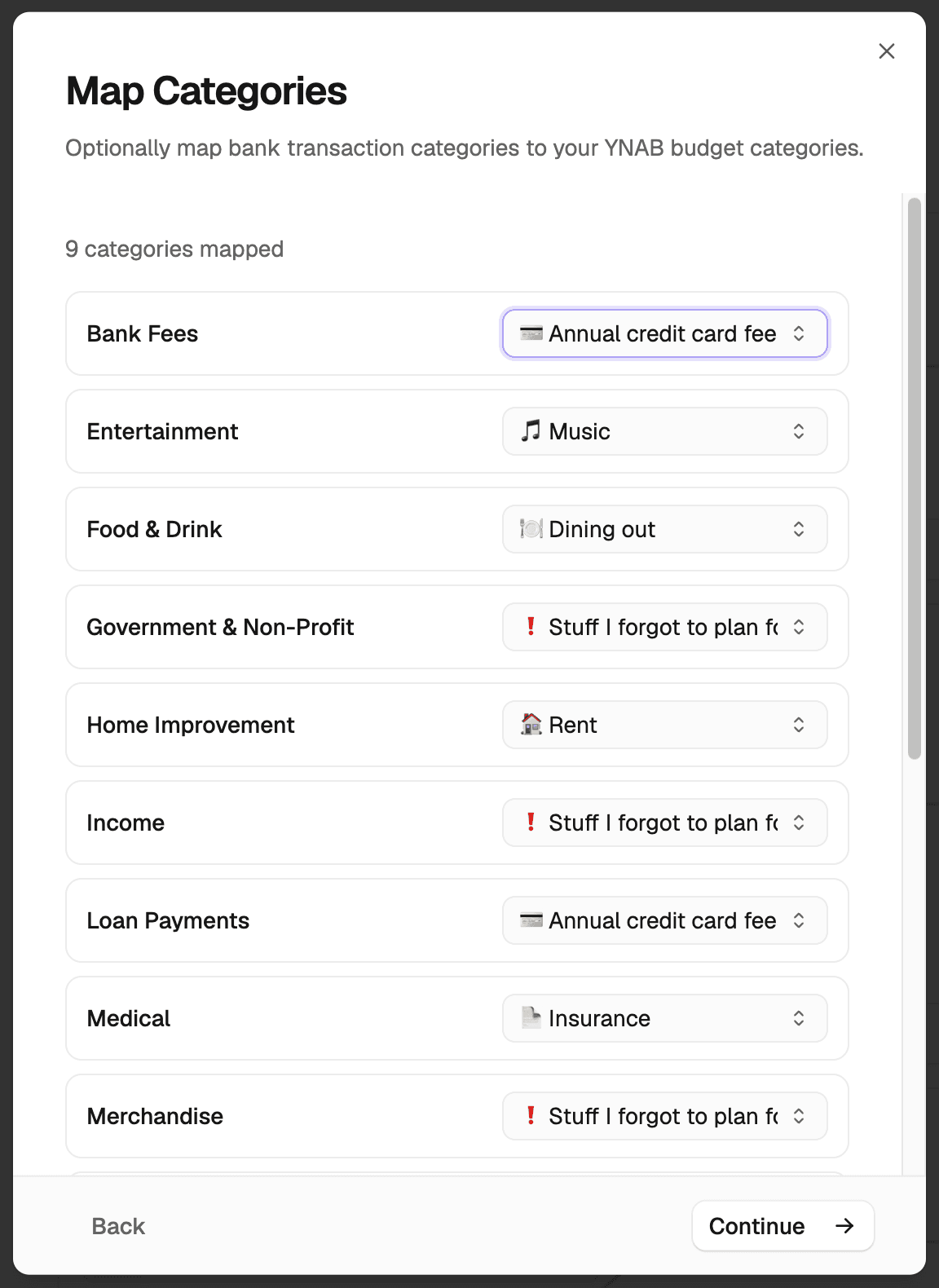
Each bank category shows a dropdown with all the categories from your You Need a Budget plan, grouped by category group. Map as many or as few as you like. Any unmapped categories will come through without a category in You Need a Budget, and you can categorise them manually there or let You Need a Budget's auto-categorisation handle it.
This is optional. If you prefer to categorise everything in You Need a Budget yourself, skip it entirely.
Step 5: Choose your date range
Pick how far back to pull transaction history. On the free trial you can go back 3 months. On Pro, up to 7 years. This only applies to the initial sync. After that, new transactions flow in as they happen.
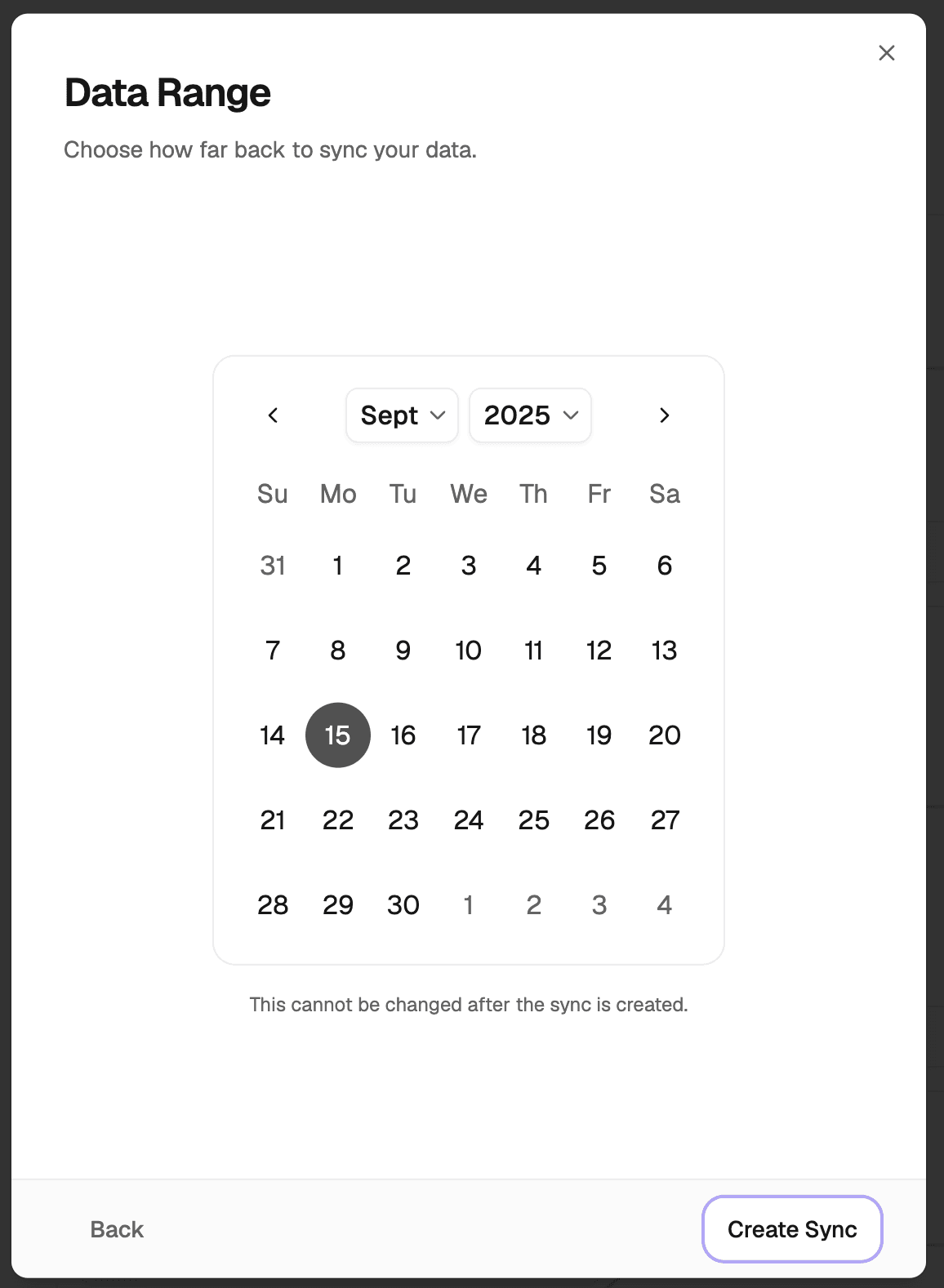
Hit "Create Sync" and you're done.
What happens after
Once you create the sync, Redbark runs an initial import that pulls your historical transactions and pushes them to You Need a Budget. Each transaction arrives in the right You Need a Budget account based on your mapping, with the amount, payee name, date, and optionally the category you mapped.
After the initial sync, it's all event-driven. When your bank has new transactions, Fiskil notifies Redbark, and Redbark pushes them to You Need a Budget. This usually happens within minutes of a transaction posting at your bank. You can also hit "Sync Now" from the dashboard if you don't want to wait.
Redbark generates a unique import ID for each transaction so You Need a Budget can deduplicate. If the same transaction comes through twice, You Need a Budget ignores the duplicate. If a pending transaction clears and the amount or description changes, Redbark updates it in You Need a Budget.
Each sync run shows up in your activity feed with its status, how many transactions were synced per account, and how long it took.
If a sync fails (your You Need a Budget token expired, your bank is temporarily down) Redbark retries automatically and emails you if it can't sort it out.
A note on amounts
You Need a Budget uses a concept called milliunits. 1000 milliunits equals one dollar. Redbark handles this conversion for you. A $42.50 debit at the supermarket shows up as -42500 milliunits in You Need a Budget's internals, but you'll just see -$42.50 in the app. Debits are negative, credits are positive, same as You Need a Budget expects.
What we don't store
Your transaction data passes through our system in memory and goes straight to You Need a Budget. No transaction amounts, descriptions, merchants, or balances are written to our database or our logs. What the database does hold is sync configuration, execution stats (how many rows were added, when the sync ran), account metadata (institution, account name, masked account number) to render the UI, CDR consent records, and encrypted OAuth tokens. We wrote a full technical breakdown of how we handle data if you want the details.
Getting started
Sign up at app.redbark.co, connect a bank, connect You Need a Budget, and create a sync. The 7-day trial doesn't require a credit card. After that, plans start at A$10/mo billed annually or A$12/mo billed monthly.
If you run into anything, reach out at support@redbark.co.