How to Sync Your Australian Bank Data to Google Sheets
A step-by-step walkthrough of connecting your Australian bank account to Google Sheets with Redbark for automatic transaction syncing.


I made a video walking through this entire setup. If you'd prefer to watch, here it is. Otherwise, keep reading.
Why Google Sheets
Most people who want their bank transactions somewhere other than their banking app are doing one of a few things: budgeting, tracking business expenses, or feeding data into a workflow they've already built. Google Sheets is usually where they end up because it's free, they already know how to use it, and it plays well with everything else.
The problem is getting data into the spreadsheet. You can download CSVs from your bank and import them manually, but it's tedious enough that most people do it once or twice and then stop. It's a manual process that breaks the moment you forget to do it.
Redbark automates that part. You connect your bank, point it at a Google Sheet, and transactions show up there automatically.
What you need before starting
- An Australian bank account with one of the 100+ supported institutions (ANZ, CommBank, NAB, Westpac, and most smaller banks and credit unions)
- A Google account
- A Redbark account (7-day free trial, no credit card required)
Connecting your bank
When you sign up and hit the dashboard, the first thing you'll do is add a connection. You click "Add Connection" and choose Australian Banks.
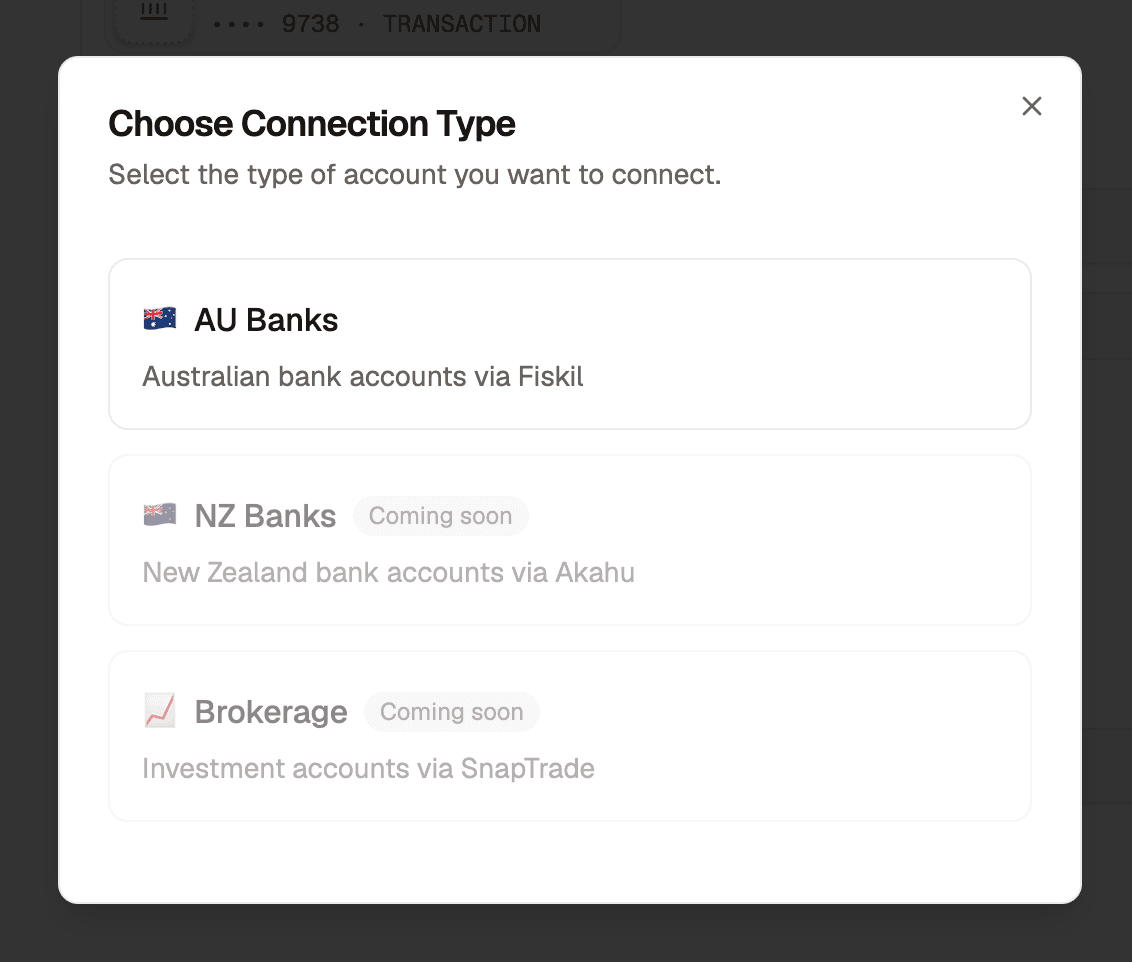
This takes you to Fiskil's consent screen, where you select your bank, log in with your banking credentials, and grant consent for Redbark to access your account and transaction data.
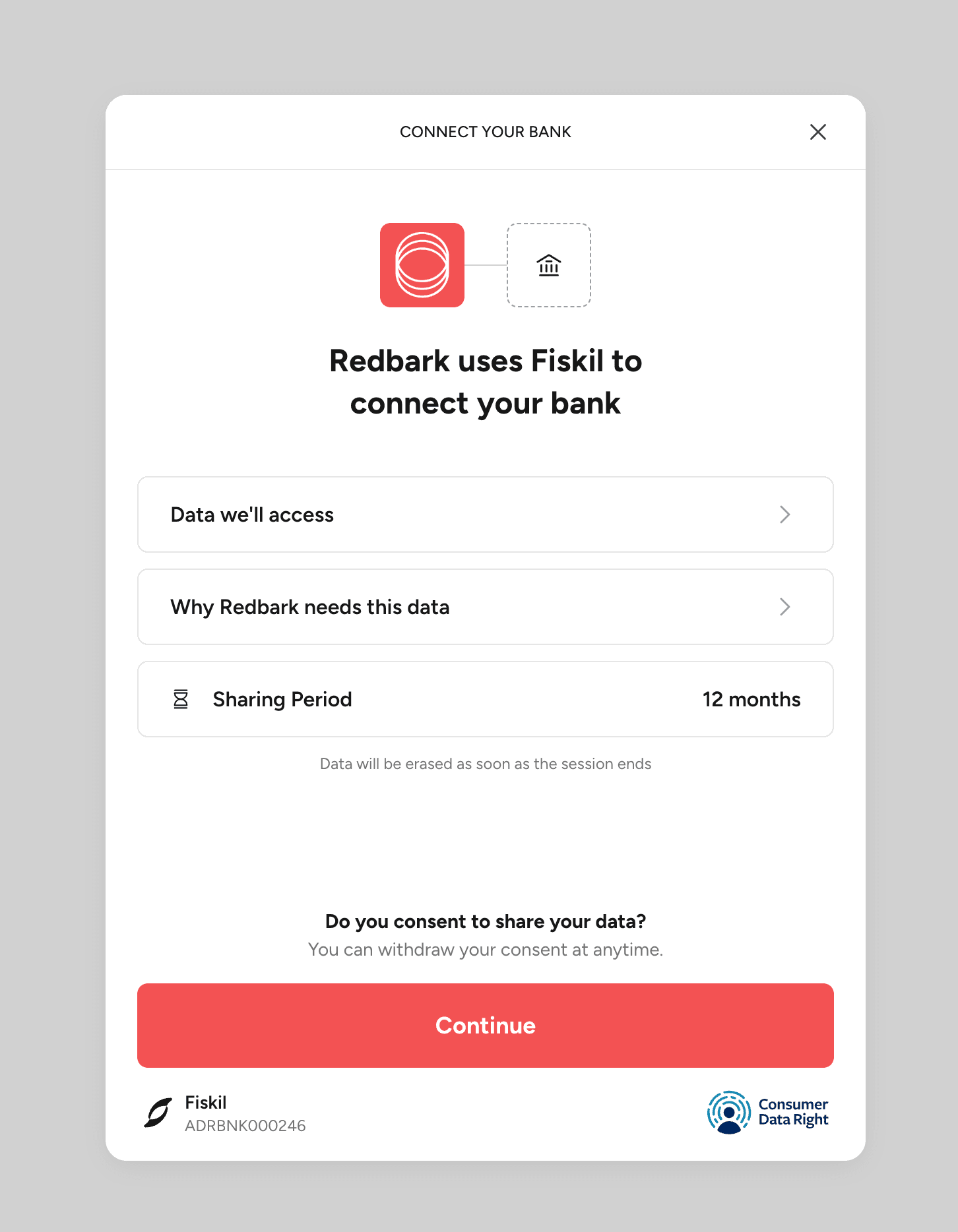
Fiskil is accredited under the Consumer Data Right (CDR). That accreditation means they've passed the ACCC's assessment for handling banking data, and your bank is legally required to share your data with them when you consent.
The whole thing takes about a minute. Once you're redirected back to Redbark, your accounts will appear in the dashboard. They'll show as syncing for a few seconds while Fiskil loads your transaction history, then switch to available.
CDR consent lasts up to 12 months. Redbark sends you an email about 90 days before expiry so you can re-consent if you want to keep syncing. We wrote about how we handle consent lifecycle and data security in our security post.
Connecting Google Sheets
Next, you connect Google Sheets as a destination.
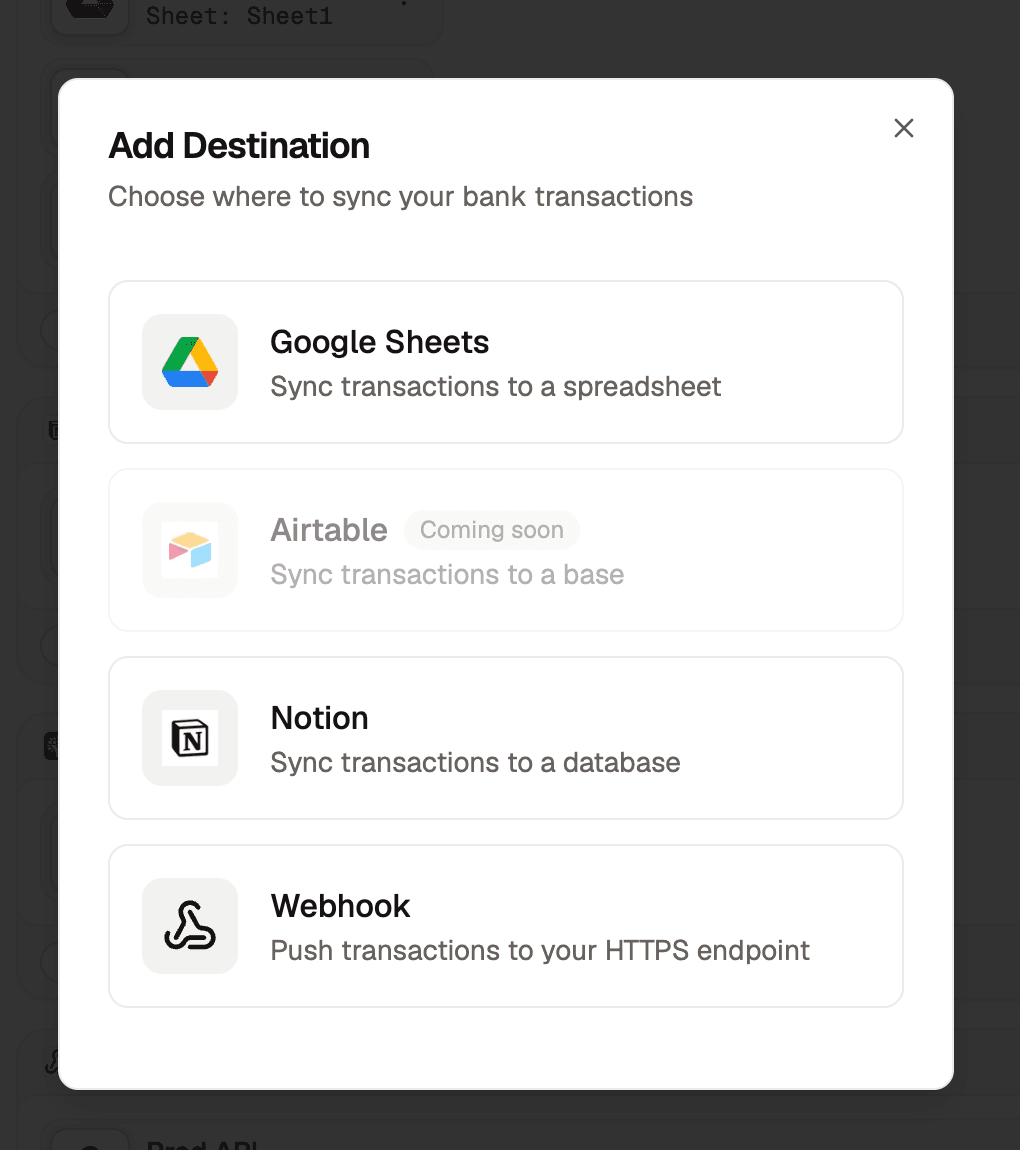
This is a standard Google OAuth flow. Redbark requests permission to create and edit spreadsheets, and you approve it.
Once connected, you can either create a new spreadsheet through Redbark or select one you already have. If you create a new one, you give it a name and Redbark sets it up for you. Either way, you pick which sheet tab within the spreadsheet to write to.
Creating a sync
With your bank and Google Sheet connected, you create a sync. A three-step dialogue walks you through it: pick which bank accounts to include, pick which Google Sheet to write to, and choose how far back to pull transaction history. On the free trial you can go back 3 months. On Pro, up to 7 years.
You can select multiple accounts in a single sync, even from different banks, and they'll all write to the same sheet. Or split them across separate sheets by creating multiple syncs. A common setup is one sheet for personal spending and another for business expenses.
What lands in your spreadsheet
Each transaction gets a row with 12 columns: Transaction ID, Date, Description, Amount, Currency, Direction, Category, Merchant, Account, Status, Class, and Post Date.
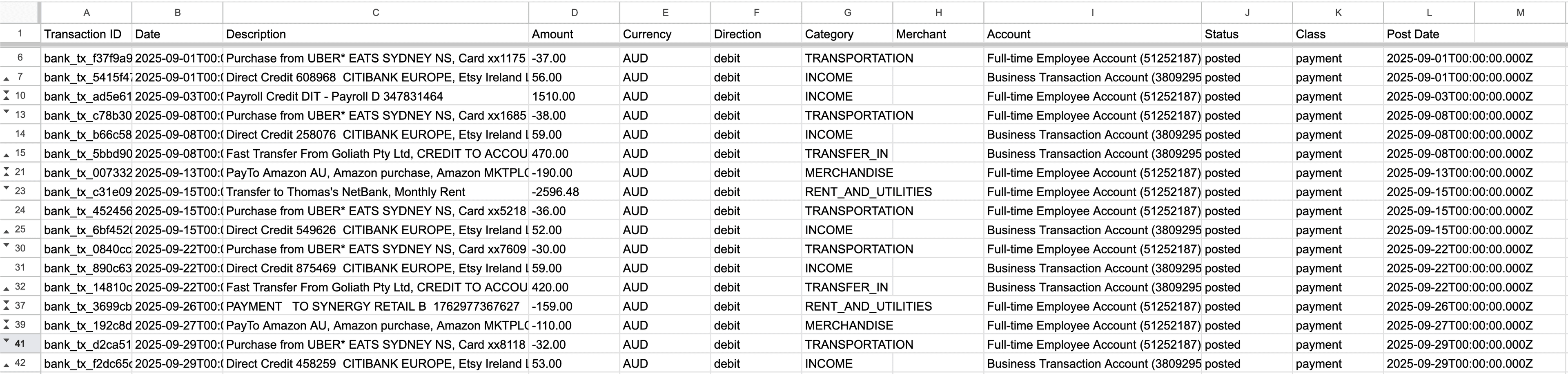
The Transaction ID column (column A) is how Redbark deduplicates. On each sync, it reads the IDs already in your sheet and only appends rows that aren't there yet. Don't delete that column.
Pending transactions are included and updated in place when they clear to posted.
From there it's your spreadsheet. Do whatever you want with the data. Redbark just keeps the raw rows coming.
How syncs run
Syncs are event-driven. When your bank has new transactions, Fiskil sends Redbark a notification and Redbark pulls the new data, checks what's already in your sheet, and appends the new rows. This usually happens within minutes of a transaction posting at your bank.
You can also hit "Sync Now" on any sync from the dashboard if you don't want to wait for the next webhook.
Each sync run shows up in your activity feed with its status, how many transactions were synced per account, and how long it took.
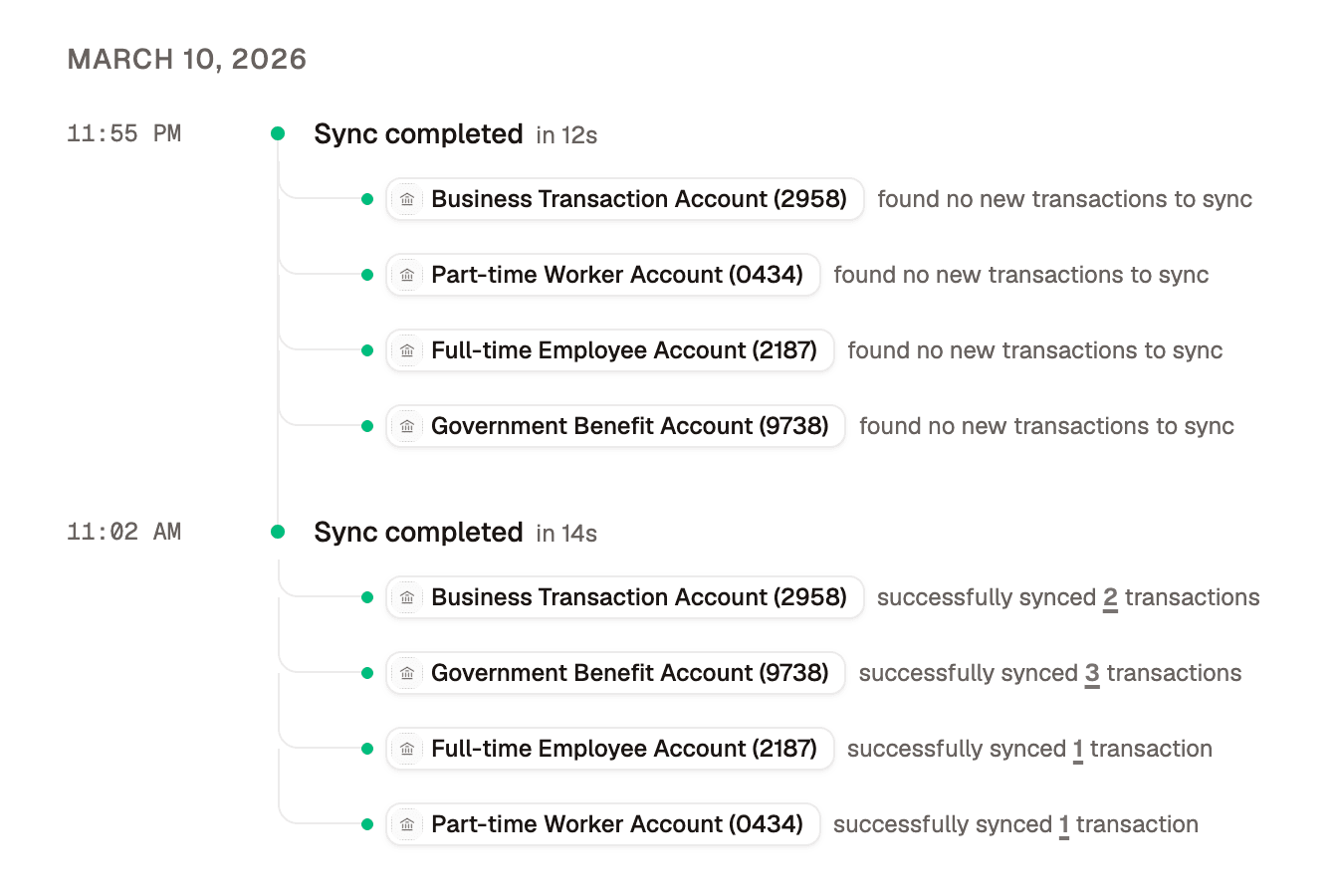
If a sync fails (your Google token expired, your bank is temporarily down) Redbark retries automatically and emails you if it can't sort it out.
The security post covers how transaction data moves from your bank to your sheet without landing in our database.
What we don't store
We wrote a full technical breakdown of how we handle data. The short version: your transaction data passes through our system in memory and goes straight to your Google Sheet. No transaction amounts, descriptions, merchants, or balances are written to our database or our logs. What the database does hold is sync configuration, execution stats (how many rows were added, when the sync ran), account metadata (institution, account name, masked account number) so the UI works, CDR consent records, and encrypted OAuth tokens.
Getting started
Sign up at app.redbark.co, connect a bank, connect a sheet, and create a sync. The 7-day trial doesn't require a credit card. After that, plans start at A$10/mo billed annually or A$12/mo billed monthly.
If you run into anything, reach out at support@redbark.co.